
The setlist editor shows one setlist with its sets, songs, pauses and transitions. Changes save as you make them. It opens in reading mode; select Edit to change the shared running order.
Open a setlist
- Open Setlists under Repertoire.
- Select its card.
Available in a band, to every member. Contributor or higher can create, copy, import, edit and delete setlists. A Reader can view, preview and start a setlist, download it, and choose their own chart/PDF and audio. Personal notes require Contributor or higher. Setlists are not available in an artist profile.
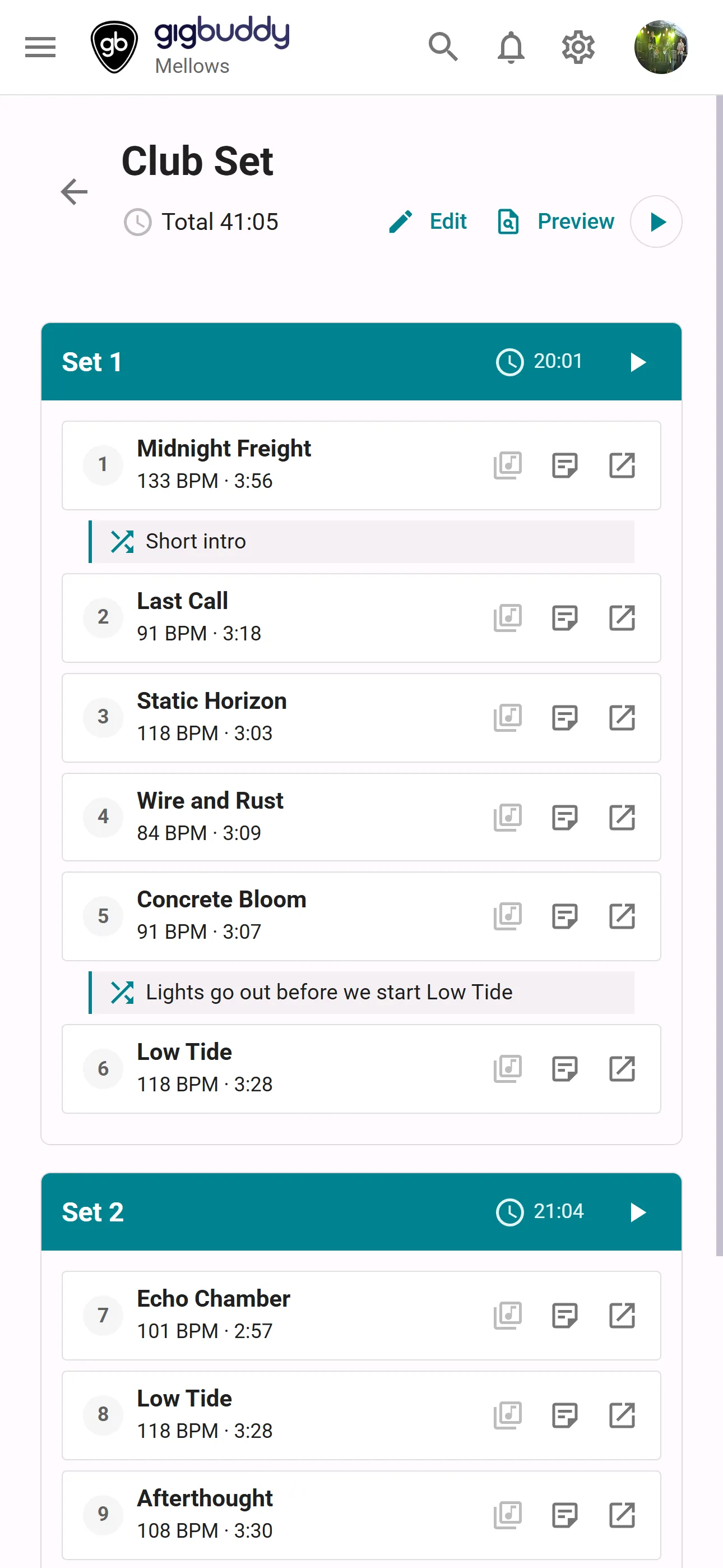
Header
| Element | What it does |
|---|---|
| back | Returns to Setlists. |
| setlist name | The setlist name. Editable in Edit mode. It saves after typing stops. |
| Total duration | Sum of songs and pauses in sets with Include in total time enabled. |
| Edit / Done | Shows or hides controls for changing the shared setlist. Contributor or higher. Your resource pickers remain available outside edit mode. |
| Preview | Opens Preview. |
| Start | Starts Setlist live mode from the first item. |
| Download for offline use | Chooses this setlist for offline use and shows its download status. See Offline setlists. |
Sets
Each set has a name, duration and items in running order. Song numbering continues across sets and ignores pauses. A set excluded from the total still appears in the list, preview and live mode.
| Action | What it does |
|---|---|
| set name | In edit mode, rename the set. A nonempty changed name saves when you leave the field. |
| Start from this set | Starts live mode from this set’s first item. Disabled for an empty set. Navigation still wraps around the whole setlist. |
| Include in total time | Toggles whether this set’s duration contributes to the setlist total. |
| Move set up / Move set down | Moves the whole set one position. |
| Delete set | Deletes this set and its setlist items. |
| Add song | Opens the searchable song picker described below. |
| Add pause | Adds a pause of 1:00. Change its duration and optional label in the row. |
Set management needs edit mode and Contributor or higher.
Songs and pauses
| Element | What it does |
|---|---|
| Song title and details | The title links to the song page. Below it are its tag, key, tempo and duration. Song metadata comes from the repertoire; edit it on the song page. |
| drag | In edit mode, drag songs and pauses to another position or another set. |
| remove item | Removes this item from the setlist, without deleting the repertoire song. |
| duration | Pause duration, for example 1:30. Saves on leaving the field. |
| Label (optional) | Optional pause label. Saves when you leave the field; clearing it removes the label. |
| chart or sheet music for this song | Chooses your chart or PDF for this song occurrence. See Play from below. Every member. |
| audio for this song | Chooses your recording or song link. See Audio below. Every member. |
| My note | Opens your personal note for this item: a note up to 280 characters, personal to your account and this song occurrence; Clear removes it. Contributor or higher can change it, even outside edit mode. |
A selected audio source has a play/open button in reading mode. Uploaded recordings and supported links open a player; other links open a new tab. Streaming links need a connection. A downloaded recording can play offline.
Transitions
In edit mode, between two adjacent songs in the same set, hover over the gap and select Link as transition. Enter an optional transition note; it saves on leaving the field. Remove transition removes the link and its note. Moving or deleting a song can clear a transition when the original pair is no longer adjacent. A pause cannot be part of a transition.
Actions
| Action | Where | What it does |
|---|---|---|
| Add set | Below the sets | Adds an empty set. Contributor or higher in edit mode. |
| Delete setlist | Bottom of the page | Deletes the complete setlist. Contributor or higher in edit mode. |
Dialogs
Add song
Opened with Add song. Type part of a title or artist in Search songs…. Search filters the band’s songs, ignoring letter case. Each result shows title, artist, key and duration where available. Select a result to append it to the chosen set.
Play from
Select a chart or PDF attached to the song. This saves your choice for this item immediately and closes the picker. It does not change another member’s choice.
| Choice | What it does |
|---|---|
| A named chart or PDF | Uses that source for this occurrence. |
| The default row | Clears your item choice and falls back to your own song default, then the band song default. The row names the active default. |
| Nothing | Shown as an extra choice when a default exists. Forces this item to show no chart or PDF, even if a song default is set. |
Song defaults are explained in Song details.
Audio
Choose one of the song’s uploaded recordings or links. The picker saves your choice for this item and closes. Its default row clears the item choice and uses your song default, then the band default. Unlike Play from, it has no extra choice that mutes an inherited default.