
Invoices lists the invoices of the band or artist profile you are working in, with the amount in each state. From here you create an invoice and open it in the detail view to edit, send and mark it.
Open Invoices
- In the side menu, under Financial, select Invoices.
The page is shown to a Financial admin or Admin, in a band and in an artist profile. Creating, editing and sending invoices needs Finance & accounting (Band Gold, Artist Gold). On a plan without it the menu entry shows a diamond and an upgrade link.
Settings that change this page
| Setting | Where | Effect |
|---|---|---|
| Invoice mode | Settings › Finance settings | Sets how the draft invoice for a gig shows fee shares. See Gig terms, deal types and fees. |
| Accounting Settings | Settings › Finance settings | The accounts that invoices are booked to. |
| Integrations | Settings › Integrations | Adds the Mollie payment link to an invoice, and the sender for emailing invoices. |
What the page contains
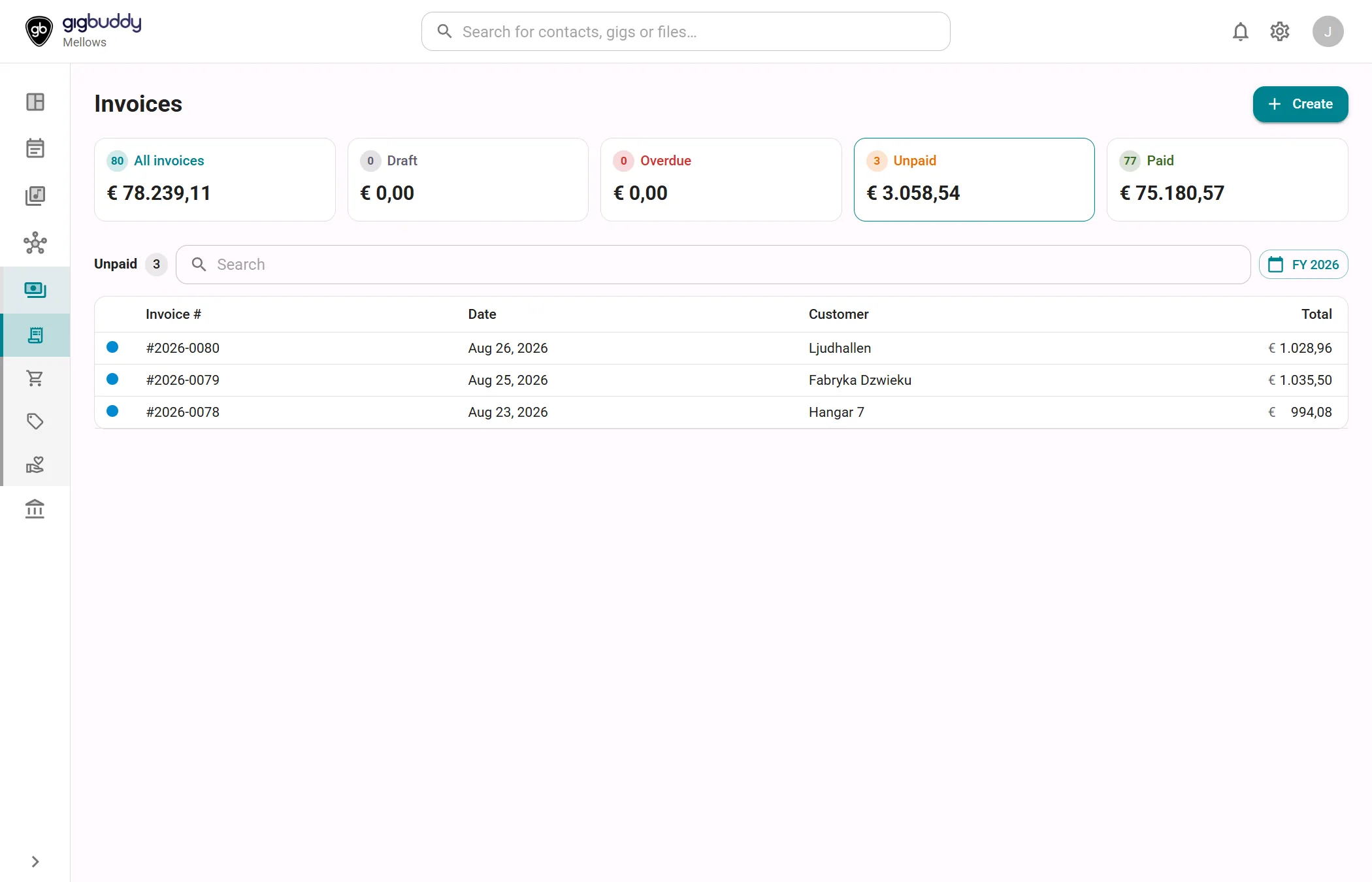
| Area | What it shows |
|---|---|
| Summary cards | Five cards, each with a count and a total: All invoices, Draft, Overdue, Unpaid and Paid. Select a card to filter the list. Unpaid is selected when the page opens. Unpaid includes the Overdue invoices. A void invoice is not counted in any card. |
| List heading | The name of the selected card and the number of invoices in the list. |
| Search | Filters the list on the invoice number and the customer name. |
| Period button | Chooses the period by issue date: Month, Quarter, Fiscal Year, All Time or a Custom Range. |
| Invoice list | One row per invoice, with a status dot, Invoice #, Date (the issue date), Customer and Total. The dot is orange for a draft, blue for sent, green for paid and grey for void. The list shows 25 rows per page; with more rows a page control offers 25, 50 or 100. On a phone each invoice is a card. |
A sent invoice counts as overdue when its issue date plus its payment term has passed. Without a payment term the page uses 14 days.
Actions
| Action | Where | What it does |
|---|---|---|
| Create | Toolbar | Opens New invoice. The new draft opens in the detail view. |
| Select a summary card | Cards | Shows only the invoices in that state. |
| Select a row | List | Opens the invoice. See Invoice details. |
Dialogs
New invoice
Opened with Create. It creates a draft invoice and opens it. The invoice gets the next number of the year of its issue date, in the form 2026-0001.
- Choose a gig in the Gig field. A gig that already has an invoice is marked Already has an invoice. The draft is filled in with the gig's booking fee, the venue address and a default line description.
- Select Continue.
- If the gig has both a festival and a venue, Select billing target opens. Choose Festival / event organisation or Venue / physical location and select Continue. Back returns to the gig.
To start without a gig, select I'm invoicing without a gig. This creates an empty draft.
In an artist profile the second step is always shown, titled Select billing target, with two more choices: Band you played with and Another contact. For Another contact, pick the contact to bill. The dialog notes that only gigs you created yourself are listed. To invoice a band for one of its gigs, open that gig and choose Invoice the band.
The lines the draft starts with, and how Invoice mode changes them, are explained in Gig terms, deal types and fees.
Invoice details
Select an invoice in the list to open its details. On a wide screen the details open next to the list; on a phone they replace it. See Invoice details.