
Purchases lists the bills and receipts of the band or artist profile you are working in. From here you add a purchase from an e-invoice, a receipt or by hand, and open it in the detail view to check, approve and register its payment.
Open Purchases
- In the side menu, under Financial, select Purchases.
The page is shown to a Contributor, Financial admin or Admin, in a band and in an artist profile. A Financial admin or Admin sees every purchase. A Contributor sees only the purchases they created. Adding and editing purchases needs Finance & accounting (Band Gold, Artist Gold). On a plan without it the menu entry shows a diamond and an upgrade link.
Settings that change this page
| Setting | Where | Effect |
|---|---|---|
| Accounting Settings | Settings › Finance settings | The Default expense account for lines without an account, the Accounts payable and the VAT accounts. Books closed through blocks approving a purchase with an earlier receipt date. |
What the page contains
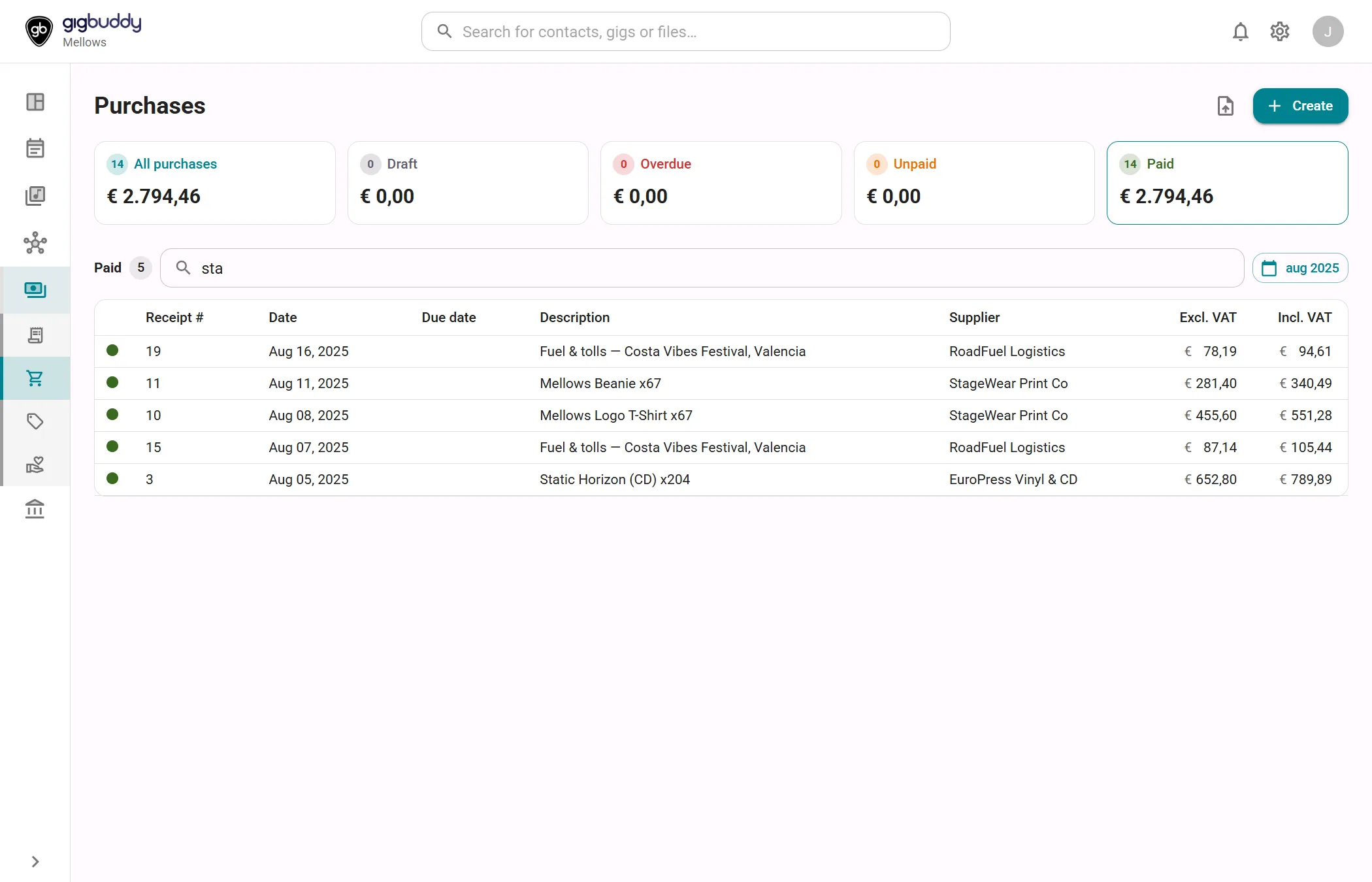
| Area | What it shows |
|---|---|
| Summary cards | Five cards, each with a count and a total: All purchases, Draft, Overdue, Unpaid and Paid. Select a card to filter the list. Unpaid is selected when the page opens and includes the Overdue purchases. An approved purchase is overdue once its due date has passed. Without a due date it is unpaid. |
| Search | Filters on the receipt number, the supplier and the description. |
| Period button | Chooses the period by receipt date: Month, Quarter, Fiscal Year, All Time or a Custom Range. |
| Purchase list | One row per purchase, with a status dot and the columns Receipt #, Date, Due date, Description, Supplier, Excl. VAT and Incl. VAT. The status is draft, approved or paid. |
Actions
| Action | Where | What it does |
|---|---|---|
| Create | Toolbar | Opens Add purchase. Contributor or higher. |
| Select a summary card | Cards | Shows only the purchases in that state. |
| Select a row | List | Opens the purchase. See Purchase details. |
Dialogs
Add purchase
Opened with Create. It creates a draft purchase and opens it, so you can check it before approving. A draft posts nothing to the books and can be deleted.
| Option | What it does |
|---|---|
| Upload file | Reads an e-invoice: a UBL or CII XML file, or a Factur-X / ZUGFeRD PDF. The supplier, the dates and the lines come from the file. |
| Upload receipt | Reads a receipt: a PDF of at most 2 pages, a JPEG or a PNG. The text is read with OCR; check every field. |
| Skip, I don't have a receipt | Creates an empty draft with today's date and one empty line. |
After a file is read, the dialog confirms Draft purchase created with the supplier, the total and the number of lines. Warnings follow in two groups. Check before approving lists what needs correcting, for example lines that do not add up to the stated total, a missing description or a possible duplicate. What was inferred lists what the reader guessed or changed, for example a suggested expense account, a VAT rate that was applied, or a discount spread across the lines. Select Open draft to continue in the detail view.
Note
Imported documents are not verified for accuracy or legal validity. Check the draft against the original before approving. A reverse-charge e-invoice is booked at 0% VAT, because a purchase cannot record both sides of that VAT.
Purchase details
Select a purchase in the list to open its details. On a wide screen the details open next to the list; on a phone they replace it. See Purchase details.