
Song details shows one song: its title, artist, album, key, tempo, duration, tags and rightholders, plus lyrics, links, lead sheets, sheet music, audio recordings and notes. You edit the song here. Changes save automatically.
Open a song
- Open Songs from the side menu.
- Select a song in the list.
On a wide screen the details open next to the list, which stays visible on the left; select another song to switch. On a phone the details replace the list, and Back returns to it.
Songs are available in a band and in an artist profile. Every member can read a song. Contributors, Financial admins and Admins can edit it. A Reader sees the same page with the fields locked.
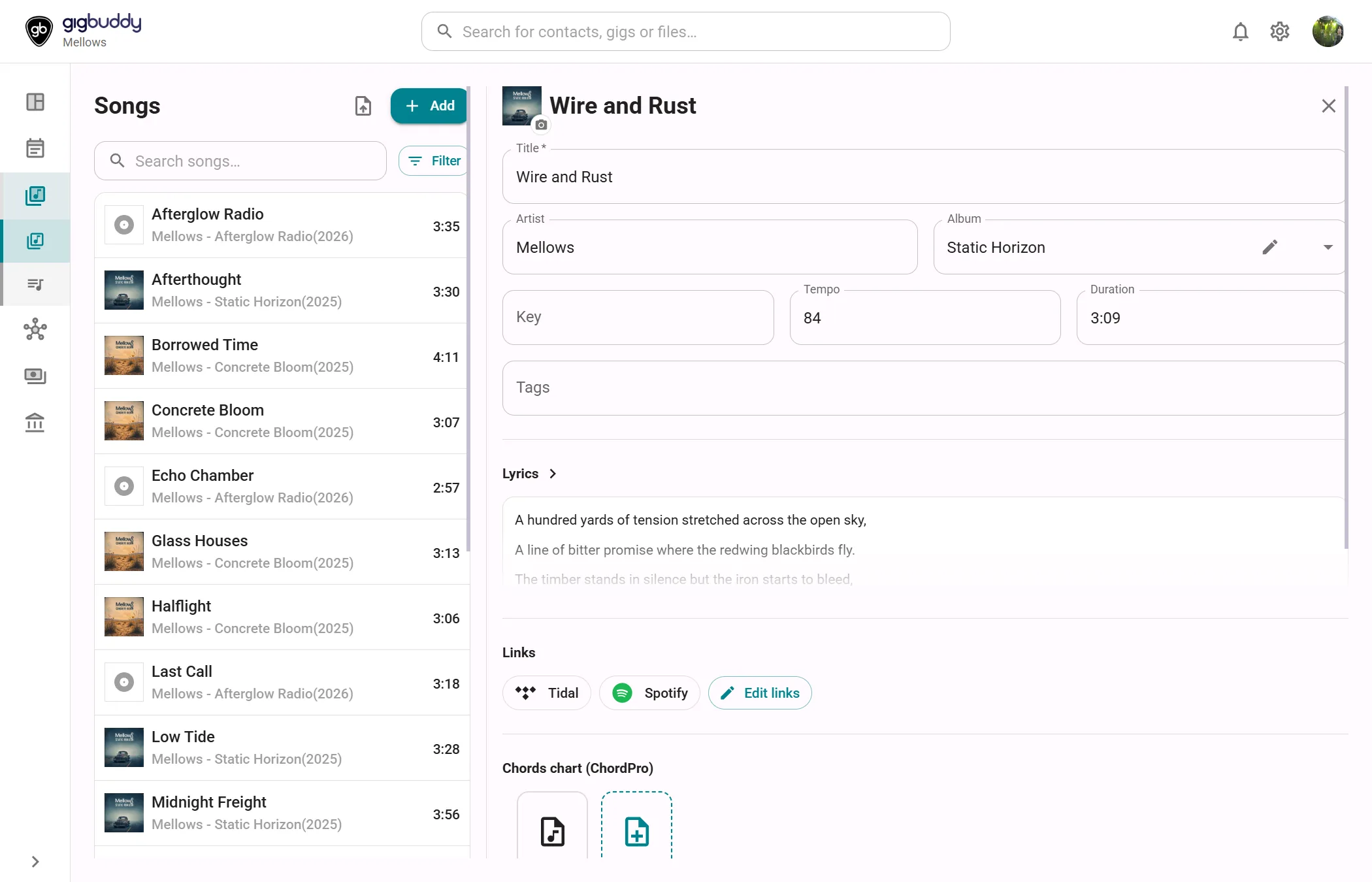
Header
| Element | What it shows or does |
|---|---|
| Cover thumbnail and title | The cover thumbnail and the song title. The thumbnail shows the song's own cover. Without one it shows the album art, and without that a placeholder. |
| Camera button | Labelled Change or remove cover image. Without a cover it opens a file picker. With a cover it opens a menu with Change cover… and Remove cover. Accepts JPEG, PNG and WebP up to 5 MB. Contributor or higher; changing the cover needs Custom branding (Band Silver or higher, Artist Gold). |
| Library icon | Labelled Setlist defaults. Opens the Setlist defaults dialog. Shown in a band, to every member. |
| Arrow or cross button | Back (arrow) on a phone, Close (cross) next to the list. Both save pending changes before leaving. |
Below the form the save status shows Saving…, then Saved. It is shown to everyone who can edit.
Song fields
The fields at the top of the page. Each saves about half a second after you stop typing.
| Field | What to enter | Notes |
|---|---|---|
| Title | The song title. | Required. |
| Artist | The performing artist. | Optional. |
| Album | Search and select an album, or create one. | The pencil (Edit album) edits the selected album. If no album matches your search, the list offers Create album “…”…. Albums are shared by all songs, so editing one changes it for every song on it. |
| Key | The key, as text. | Optional. |
| Tempo | A number. | Clear the field to remove it. |
| Duration | Minutes and seconds, for example 3:45. | Clear the field to remove it. |
| Tags | Select an existing tag or type a new one. | Optional. |
| Rightholders | Free text, for example writer, composer or publisher. | Optional. |
Lyrics
A text editor for the lyrics. Lyrics save automatically.
When the song already has lyrics, the section opens collapsed and shows the first lines. Select the heading or the preview to expand it; select the heading again to collapse it. A song without lyrics opens expanded.
| Toolbar button | What it does |
|---|---|
| Bold, Italic, Underline | Turns the formatting on or off for the selected text. |
| Heading 2, Heading 3 | Turns the current paragraph into a heading, or back. |
| Bullet list, Numbered list | Turns the selection into a list, or back. |
The toolbar labels are in English in every app language.
Links
Links to the song on streaming services or elsewhere. A saved link opens in a new tab and shows its platform.
- Select Add links, or Edit links when the song already has links.
- Select the + next to a platform: Spotify, SoundCloud, Apple Music, Deezer, Tidal, YouTube or YouTube Music. Select the + next to Other for any other address.
- Paste the address. For Other, add a Label too.
- Select Finished.
| Element | What it does |
|---|---|
| URL | A platform link must start with that platform's address. An Other link must be an http or https address. |
| Label | Name for an Other link. Platform links use the platform name. |
| Finished | Saves every new row and leaves edit mode when all rows are valid. Empty rows are discarded. Enter saves the row you are typing in. |
| delete link (bin icon) | Removes a saved link right away, or discards a new row. Saved links can be removed in edit mode. |
| Find links | Opens Find music links. |
A platform that already has a link on the song is not offered again. Adding and removing links needs the Contributor role or higher.
Lead sheets (ChordPro)
Charts written in ChordPro. Each chart is a card with its name; select a card to open the chart in a full-screen viewer, described in Lead sheets (ChordPro). Create adds a new chart named New chart with sample content and opens it in edit mode.
Note
Creating and editing charts needs Sheet music & ChordPro (Band Silver or higher, Artist Gold), and the Contributor role or higher. Without the plan feature the heading shows a diamond, and existing charts stay readable. Deleting a chart needs only the Contributor role or higher.
Sheet music
PDF files attached to the song. Each file is a card with its filename and size; select the filename to open the file.
- Add PDF opens a file picker. You can pick several PDFs. Each file can be up to 5 MB.
- delete file (bin icon) on a card removes the file from the song.
Audio recordings
MP3 files attached to the song.
- Add mp3 opens a file picker. You can pick several files. Each file can be up to 20 MB.
- The play button on a card starts the recording in a player below the card. The same button pauses it. The filename opens the file.
- delete file on a card removes the file from the song.
Note
Uploading PDFs and MP3s needs Discography & files (Band Silver or higher, Artist Gold), the Contributor role or higher, and free storage in the workspace. Without the plan feature the Add PDF and Add mp3 buttons show a diamond and link to the upgrade options. Files upload one after the other. Existing files stay readable, and Contributors and higher can still delete them.
Notes
A multi-line text box, Song notes…, for your own notes on the song. Notes save automatically.
Actions
| Action | Where | What it does |
|---|---|---|
| Change cover… | Camera menu in the header | Uploads a new song cover. Needs Custom branding. |
| Remove cover | Camera menu in the header | Removes the song's own cover. The album art, if there is any, is shown again. |
| Setlist defaults | Header | Opens the Setlist defaults dialog. |
| Delete | Bottom of the page | Deletes the song. Contributor or higher. |
Dialogs
Setlist defaults
Opened from the header. It sets which audio link and which lead sheet or sheet music a setlist uses for this song. It has two columns:
| Column | Who can change it | Fields |
|---|---|---|
| Band default | Admin | Audio link and Lead sheet or sheet music |
| My default | Every member, for their own choice | Audio link and Lead sheet or sheet music |
The audio choices are the song's links and MP3 recordings. The other choices are its lead sheets and PDFs. A list is disabled while the song has no matching items. Choose None to clear a choice. In My default, None falls back to the band default and the entry reads Band default: …, followed by its name.
Choices save as you make them. Close closes the dialog. Only available in a band. See Setlist and songs.
Find music links
Opened with Find links in the Links section. It finds the song on other music services from a Spotify link. Results are best effort, so check each match before you add it. Existing links are kept. Contributor or higher. It needs an internet connection and can take up to 25 seconds.
| Field | What to enter | Required |
|---|---|---|
| Spotify link | A Spotify track link. Prefilled from a Spotify link the song already has. | Yes |
| UPC (optional) | Identifies the release; 12, 13 or 14 digits. | No |
| ISRC (optional) | Identifies the recording; 12 characters. | No |
| Country code | The storefront, two letters, for example NL or US. Starts as NL. | Yes |
- Fill in the fields and select Find matches.
- Review the matches. Each shows how it was found: Matched by identifier, Matched by song or album details or Found on a public page. A platform the song already has shows Already added.
- Select Add selected (n). The dialog closes when every selected link is saved.
Use OneDrive's embed code
Opens when you save a OneDrive share link. A OneDrive share link opens in a new tab but cannot play inside gigBuddy. To play the track from the setlist, use OneDrive's embed code:
- Open the file in OneDrive.
- Choose File → Share → Embed.
- Copy the whole code, starting with
<iframe, and paste it into the link field.
Paste embed code returns to the link field. Save link anyway saves the share link as it is.