
Setlist live mode shows the selected chart or PDF for each song, in setlist order. Tap the screen or use a keyboard or page-turner pedal to move through the music.
Open live mode
- Open a setlist.
- Select Start for the whole list, or Start from this set on a set.
Band only, every member. It loads your own resource choices and personal notes. The running view stays on the data it loaded; reopen it after editing the setlist elsewhere.
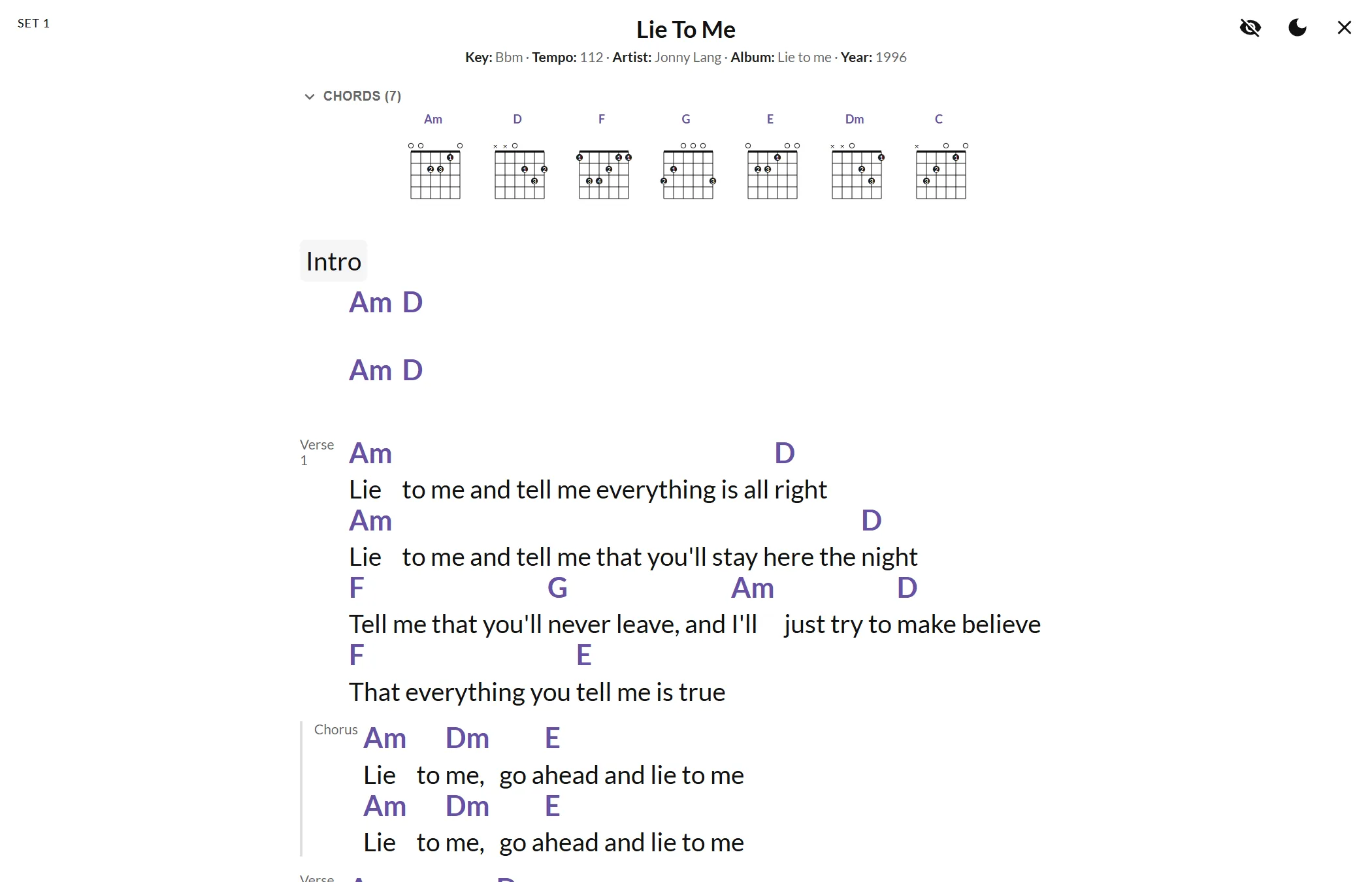
Header and controls
| Control | What it does |
|---|---|
| Set name | The current set is named at the top. |
| previous / next | Tap the left or right side. Turn a page within the current song before moving to the previous or next item. |
| show or hide controls | Tap the centre to show or hide the control bar with the item title, position counter and previous/next buttons. Hidden initially. |
| Show personal notes / Hide personal notes | Toggles your personal notes at the foot of the music. Hidden initially. Shared transition notes stay visible independently. |
| Switch to a light background / Switch to a dark background | Changes the background for this running view only. Starts with the app’s theme. |
| Exit | Returns to the setlist. |
Where the browser supports it, the app requests that the screen stay awake while live mode is open.
Charts, PDFs and pauses
A long ChordPro chart is divided into screenfuls. A PDF is navigated page by page. Moving back from a song’s first page opens the last page of the previous item. Both ends wrap around the complete setlist, even if you started from a later set.
A pause has a slide with its label or Pause. There is no automatic timer that moves on after a song or pause.
Count-in and audio
The count-in button appears for an integer tempo from 30 to 300 BPM when the browser supports Web Audio. It plays two bars of four beats and accents each first beat. Stop count-in stops it. Moving to another item also stops the count-in.
A chosen audio source adds a button at the top left. It plays the recording or opens a supported link player; other links open in a new tab. Closing the player or changing items stops in-app playback. Streamed audio requires a connection. Offline mode plays only recordings downloaded with the copy.
Keyboard and pedal
Defaults are listed below. Change them in Setlist and songs.
| Action | Default keys |
|---|---|
| Next page or song | ArrowRight, ArrowDown, PageDown, Space, Enter |
| Previous page or song | ArrowLeft, ArrowUp, PageUp, Backspace |
| Back to the first song | Home |
| Leave live mode | Escape |
| Start or stop the count-in | T |
| Show or hide personal notes | N |
| Play or stop the song's audio | A |
Letters are case-insensitive. Browser shortcuts with Ctrl, Alt or Cmd retain their browser action. Navigation keys belong to the focused audio player while it has focus; character shortcuts for notes, count-in and audio remain available there.
Actions
Change a source or note in the setlist editor, not on this screen. For use without a connection, prepare Offline setlists before you go offline.