
Invoice details shows one invoice: the issuer and logo, the dates, the customer, the lines, the totals and, when Mollie is connected, a payment link. You edit a draft here, send it and mark it sent, paid or void.
Open an invoice
- Open Invoices from the side menu.
- Select an invoice in the list, or create one with Create.
On a wide screen the details open next to the list, which stays visible on the left; select another invoice to switch. On a phone the details replace the list, and Back returns to it. The cross next to the title (Close) closes the details.
A Financial admin or Admin can open invoices. Editing, sending and the status changes need Finance & accounting (Band Gold, Artist Gold).
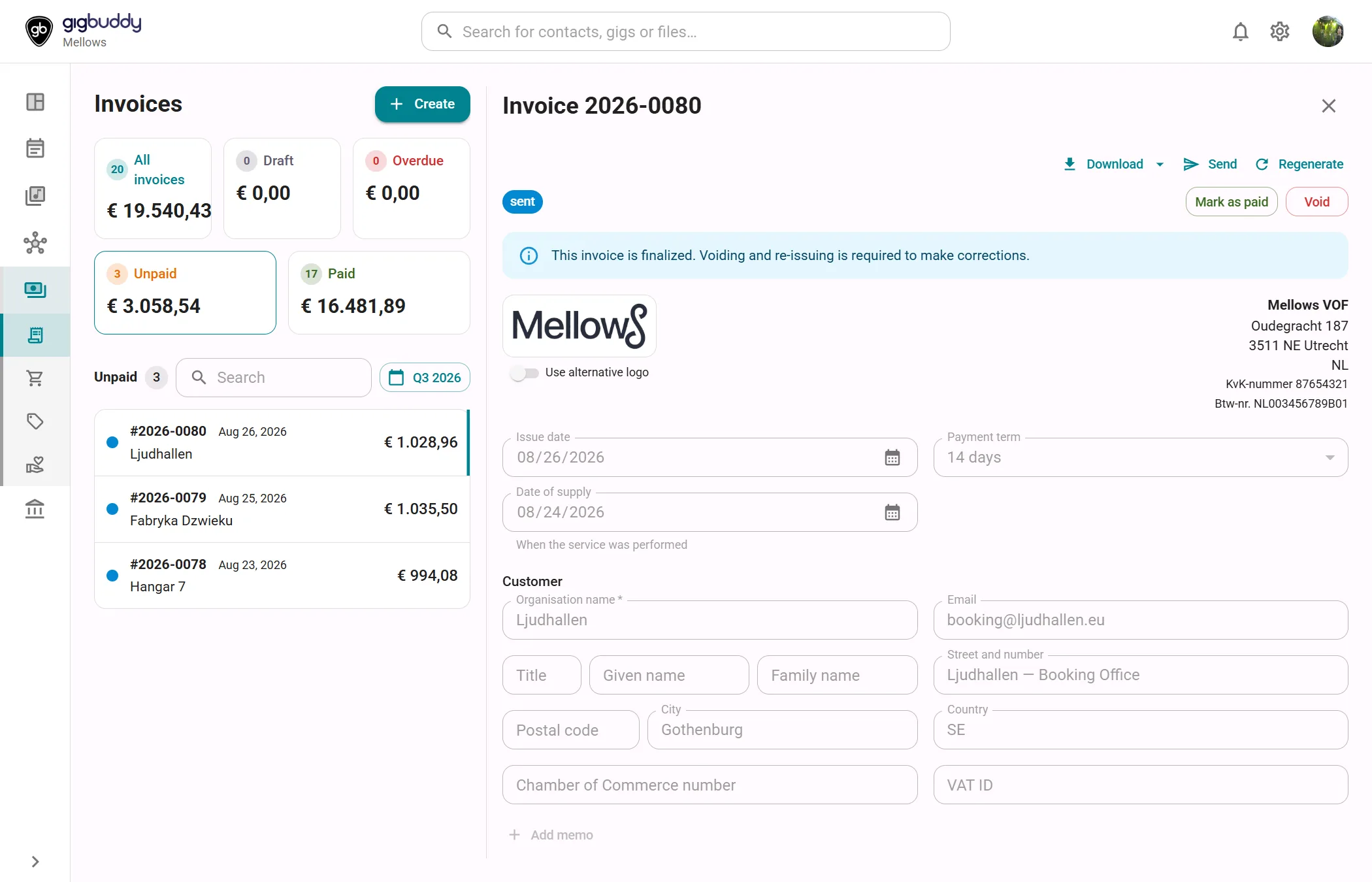
Header
| Element | What it shows or does |
|---|---|
| Title | Invoice followed by the invoice number, for example 2026-0080. |
| Status chip | draft, sent, paid or void. |
| Mark as sent, Mark as paid, Void | The status buttons. Which ones show depends on the status; see Status. |
| Download | A menu with Download PDF (once a PDF exists), Download UBL (XML) and UBL with embedded PDF invoice. Every Financial admin or Admin can download, whatever the plan. |
| History | Opens Invoice history. |
| Send | Opens Send invoice by email. |
| Regenerate | Makes the PDF again from the current invoice data. Shown once a PDF exists. |
| Save | Saves the changes. The invoice does not save by itself. |
On a phone these buttons are in one menu, labelled Invoice actions, which also holds Delete. Sending, marking as sent and marking as paid ask you to save first.
Issuer and logo
The top of the invoice shows the logo on the left and, on the right, the issuer's name, address, registration number and VAT number, taken from the financial profile in Settings.
| Element | What it does |
|---|---|
| Add logo | Opens a file picker for a JPEG, PNG or WebP image. Shown when there is no logo. |
| Replace, Remove | Replace the logo of this invoice. Remove shows only for a logo added on this invoice, and returns to the profile logo. |
| Use alternative logo | A switch, shown when the profile has an alternative logo. It uses that logo on this invoice. |
Dates and customer
| Field | What to enter | Notes |
|---|---|---|
| Issue date | The date of the invoice. | Needed to issue it. It sets the year in the invoice number of a new invoice. |
| Payment term | 7 days, 14 days, 30 days or 60 days. | The due date is the issue date plus the term, 14 days by default. |
| Date of supply | When the service was performed. | When it is set, it is the date the VAT is reported on. |
| Organisation name | The customer. | Required to save. |
| The customer's address. | The default recipient when you send the invoice. | |
| Title, Given name, Family name | The contact person. | Optional. |
| Street and number, Postal code, City, Country | The customer's address. | Name, street and city are needed to issue the invoice. The country decides, with the VAT number, whether the reverse charge can be used. |
| Chamber of Commerce number, VAT ID | The customer's registration and VAT number. | Used for the reverse charge and for e-invoicing. Changing the VAT ID clears the VIES confirmation. |
| Add memo | Opens a Memo field. | A free note on the invoice. |
Items and VAT
The Items table has the columns Description, Qty, Price, VAT % and Total. Select a cell to edit it. The VAT % cell opens a list of the rates of the accounting country. remove line deletes a line, except the last one. Add item adds a line with the standard sales rate.
| Control | What it does |
|---|---|
| Inclusive VAT / Exclusive VAT | Sets whether the prices you enter include VAT. Hidden when no VAT applies. |
| Reverse charge | Charges 0% VAT; the customer accounts for it. It needs a VAT ID of a customer in another EU country than the issuer's. Then tick VAT number checked in VIES after checking the number with Open VIES. An optional VIES consultation number is kept as evidence. Not available together with the artiestenregeling, and not shown when the small business scheme applies. |
| Artiestenregeling (no VAT) | Shown when the accounting country has this scheme. All lines go outside the scope of VAT. Unticking it restores the rate each line had, or the standard sales rate; check the rates. Not combinable with reverse charge. |
With the small business scheme the page shows Kleine ondernemersregeling — no VAT charged. and no VAT column. Whether it applies comes from the accounting profile.
Under the table the totals show Subtotal, one VAT row per rate and Total. Add discount adds a Discount row; choose % or the currency, and remove discount deletes it.
Status
An invoice moves one way: from draft to sent or paid or void, and from sent to paid or void. A paid or void invoice does not change. Each change asks for confirmation and states what it does.
| Button | Available on | What it does |
|---|---|---|
| Mark as sent | Draft | Issues the invoice. It becomes final and can no longer be edited, and the revenue and the receivable are booked. The invoice must be complete: see below. |
| Mark as paid | Draft, sent | Books the received payment to the primary checking account. On a draft it issues the invoice first. |
| Void | Draft, sent | Final. A reversing entry undoes the booked revenue and receivable. A Mollie payment link is removed. To correct a mistake, void the invoice and create a new one. A paid invoice cannot be voided. |
The invoice must meet these conditions before it can be issued.
- The issuer's name, street and city, a registration number and, where VAT is charged or reversed, a VAT number, set in the financial profile.
- The customer's name, street and city, and a valid issue date.
- At least one line with a description and a quantity above zero.
- For the reverse charge: the customer's VAT ID, valid for the country on the address, in an EU country other than the issuer's, and confirmed in VIES.
- For the artiestenregeling: every line at 0% outside the scope of VAT, and no reverse charge.
How invoices, purchases and reimbursements are booked shows the entries with an example.
Payment link
When Mollie is connected under Integrations in Settings, the invoice has a Payment link section. Creating a link needs Finance & accounting and Integrations (incl. Bandsintown, TomTom, Resend) (Band Gold, Artist Gold).
| Element | What it does |
|---|---|
| Create payment link | Makes a Mollie payment page for the invoice total. Not possible for a void invoice or a total of zero. |
| Status chip | open, paid, expired or canceled. |
| Copy link, Open | Copies the link, or opens the payment page in a new tab. |
| Refresh payment status | Asks Mollie for the current status. A paid link marks the invoice paid. |
| Remove payment link | Removes the link. Not possible once it is paid. |
Actions
| Action | Where | What it does |
|---|---|---|
| Save | Header | Saves the draft. It needs a customer name and one line with a description. |
| Send | Header | See Send invoice by email. |
| Regenerate | Header | Makes the PDF again from the current data. |
| Download | Header | PDF or UBL file. The UBL file can be made before the invoice is complete for e-invoicing. |
| Delete | Bottom of the page | Deletes the invoice. Only a draft can be deleted. |
Dialogs
Send invoice by email
Opened with Send. It builds the email from an invoice email template and shows it under Email preview.
| Field | What to enter | Notes |
|---|---|---|
| Recipient | The address to send to. | Prefilled with the customer's email. Used for this email only; the invoice does not change. |
| Template | The email template. | Shown when the workspace has more than one. |
| Personal message | Text added to the email. | The preview updates as you type. |
| Attachments | PDF only, PDF and e-invoice (XML) or PDF and e-invoice (XML with the PDF embedded). | Starts as PDF only. |
| Mark invoice as sent | A checkbox. | Shown for a draft. It marks the invoice sent after sending. |
Download .eml saves the email as a file to open in your own mail program. Send sends it directly and shows only when a verified sender is configured under Integrations in Settings. Without a sender only the download is offered.
Invoice history
Opened with History. It lists what happened to the invoice, newest first, with the date and who did it, or Automatically: Draft created, status changes, and for each email Emailed to the address, followed by the delivery reports: delivered, delayed, bounced, marked as spam, failed or suppressed. A Delivery summary sits on top. Delivery reports need the webhook set up under Integrations in Settings. Load more shows older entries.